Your monitor's real brightness, from the tray.

DDCBright is a small Windows app that turns your screens up and down the way their own buttons do, over DDC/CI. A slider for each monitor, an evening schedule that fades, and a mode that follows the light in the room.

Download for Windows Free and open source
This page 80%

Drag it. DDCBright does this to your actual monitors, with the screen's own backlight instead of a dark overlay.

Three ways to set it

Switch between them from the small toolbar in the flyout. Whatever you choose, moving a slider yourself always wins.

By hand

Click the sun in the tray and drag a slider. Every connected monitor has its own, or link them to move together. You can also scroll over the tray icon without opening anything; hovering it shows the current level.

If a monitor doesn't answer, because it's asleep or behind a flaky USB-C hub, the flyout says so instead of pretending it worked.
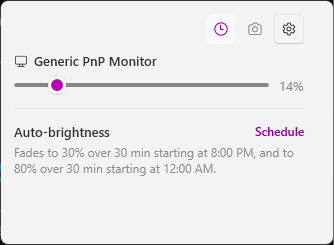
The DDCBright flyout in the light theme: one monitor at 11%, with Schedule set to dim to 30% at 8:00 PM and brighten to 80% at 8:00 AM
The flyout, in the light theme

On a schedule

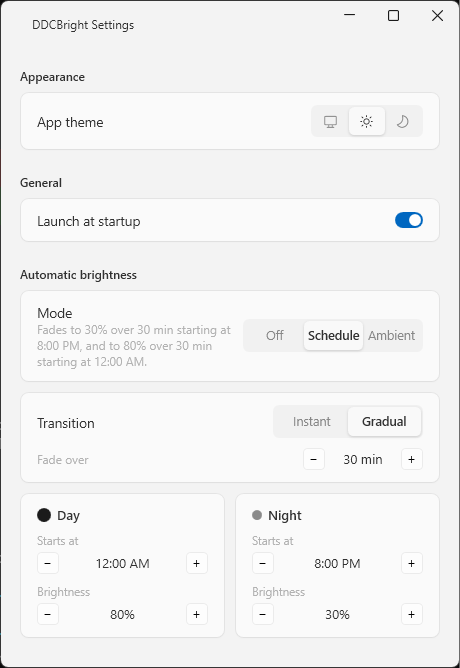
Pick a day and a night brightness and when each starts. Instant switches at that time; Gradual fades over the time you choose, so the evening dimming happens without you noticing.

With several monitors, each one fades from its own current brightness instead of jumping to match the others.

DDCBright settings in Schedule mode: a gradual 30-minute fade, day at 80% from 12:00 AM, night at 30% from 8:00 PM
Settings, with a gradual evening fade

Following the room

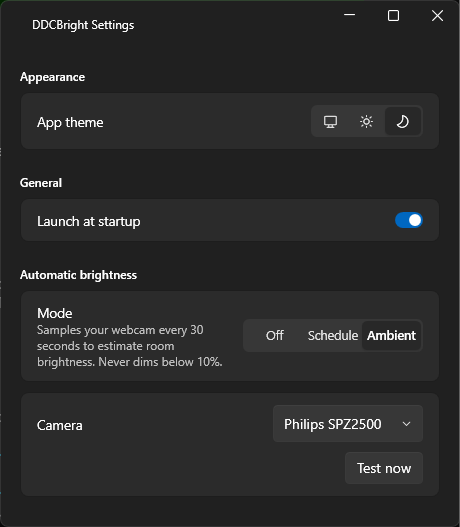
Ambient mode looks through your webcam every 30 seconds and sets the brightness to match how bright the room is, not what time it is.

It learns as you go: nudge the brightness while Ambient is on and it remembers what you like at that light level, all the way down to 0%. "Test now" shows exactly what the camera saw, and Reset forgets what it learned.

DDCBright settings in Ambient mode, with a webcam chosen in the Camera list and a Test now button
Settings, with Ambient mode and its camera picker

Small things it gets right

  • Looks like Windows

    A real Mica flyout that follows your light or dark theme and accent colour. No Electron, no bundled browser.

  • Starts with Windows

    It adds itself to startup on first run. One switch in Settings turns that off.

  • Stays out of the way

    Just a tray icon: no installer nags, no background service besides itself.

  • Tells you about updates

    Right-click the tray icon and choose Check for Updates to see if a newer version is out.

  • Keeps its logs to itself

    Crashes and slow moments are written to files in your profile, and nothing is sent anywhere.

  • Free, with the code open

    MIT licensed, with tests for the schedule and fade maths and for the Settings window itself.

Download

Both versions come from the latest release on GitHub.

Installer

Adds a Start menu shortcut and an entry in Installed apps, so it uninstalls cleanly. No administrator rights needed: it installs into your own user folder.

Download the installer

Portable

One file, nothing to install: run it from anywhere. It still adds itself to startup on its first run, which you can turn off in Settings.

Download the portable version

You'll need Windows 10 or 11, and a monitor with DDC/CI switched on in its own on-screen menu. Most external monitors have it. If a slider does nothing, that setting is the first thing to check.